Best USB-C Cable for Laptop-to-Monitor (Video + PD)
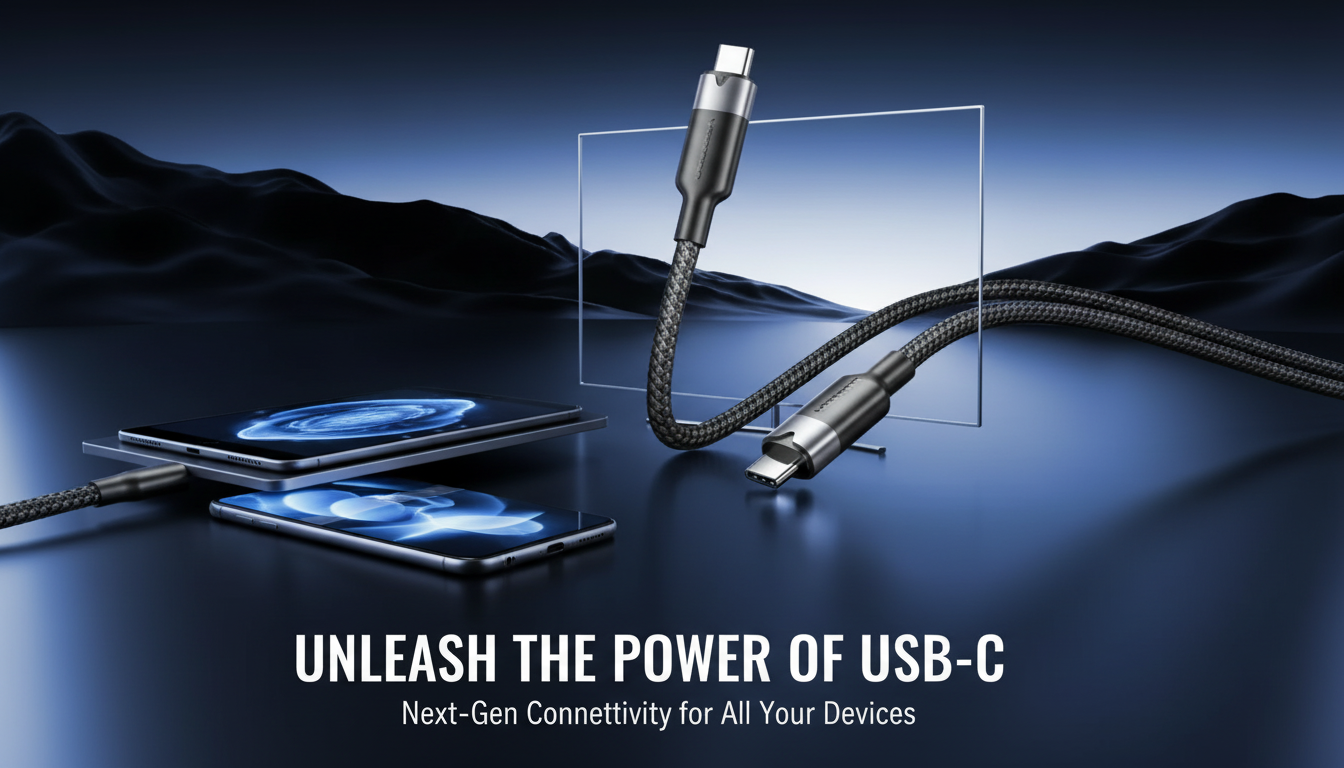
What type of USB-C cable for monitor to laptop?
The right USB-C cable depends on what you want the monitor connection to do: carry video only, provide power, or act like a full docking setup with USB data and charging. The safest choice for most modern laptops and USB-C monitors is a full-featured USB-C cable that supports USB-C DisplayPort Alt Mode for video plus Power Delivery (PD) for charging.
Match the cable to your monitor’s USB-C port
If your monitor has a USB-C port labeled “USB-C,” “DP,” “DisplayPort,” “Thunderbolt,” or “PD,” it may support video over USB-C. For a single-cable setup (video + charging + USB hub), look for a cable rated for USB 3.2 (10Gbps) or better, plus 100W PD. This type typically works best when the monitor also has USB ports for accessories.
Choose based on resolution and refresh rate
For typical office monitors (1080p or 1440p at 60Hz), most full-featured USB-C cables with DisplayPort Alt Mode work fine. For higher bandwidth needs (4K at 60Hz+, ultrawide, or high refresh gaming monitors), a Thunderbolt 3/4 cable (often 40Gbps) is a reliable option when both the laptop and monitor support Thunderbolt. If your monitor is USB-C but not Thunderbolt, a high-quality USB-C cable with DisplayPort Alt Mode still may work, but the laptop’s USB-C port must support video output.
Avoid “charge-only” cables
Many inexpensive USB-C cables are meant for charging and basic data only and won’t carry video. If the packaging doesn’t explicitly mention video, DisplayPort Alt Mode, or Thunderbolt, it’s a gamble for monitor use.
Power Delivery matters for a one-cable desk
If you want the monitor to charge the laptop, confirm the monitor’s PD output (common values are 45W, 65W, or 90W). Then pick a cable that supports at least that wattage—ideally 100W (20V/5A) for headroom.
For a deeper breakdown (including how to check your laptop port capabilities), see the full guide here: https://fabdigital.shop/what-type-of-usb-c-cable-for-monitor-to-laptop/.
FAQ
Can I use a USB-C to HDMI cable instead of USB-C to USB-C?
Yes, if your laptop’s USB-C port supports video output, a USB-C to HDMI cable can drive an HDMI monitor. You’ll typically lose single-cable charging and the monitor’s USB hub features compared with USB-C to USB-C.



Leave a comment