Dual Screen Android Projector: 4K Streaming & Casting Tips
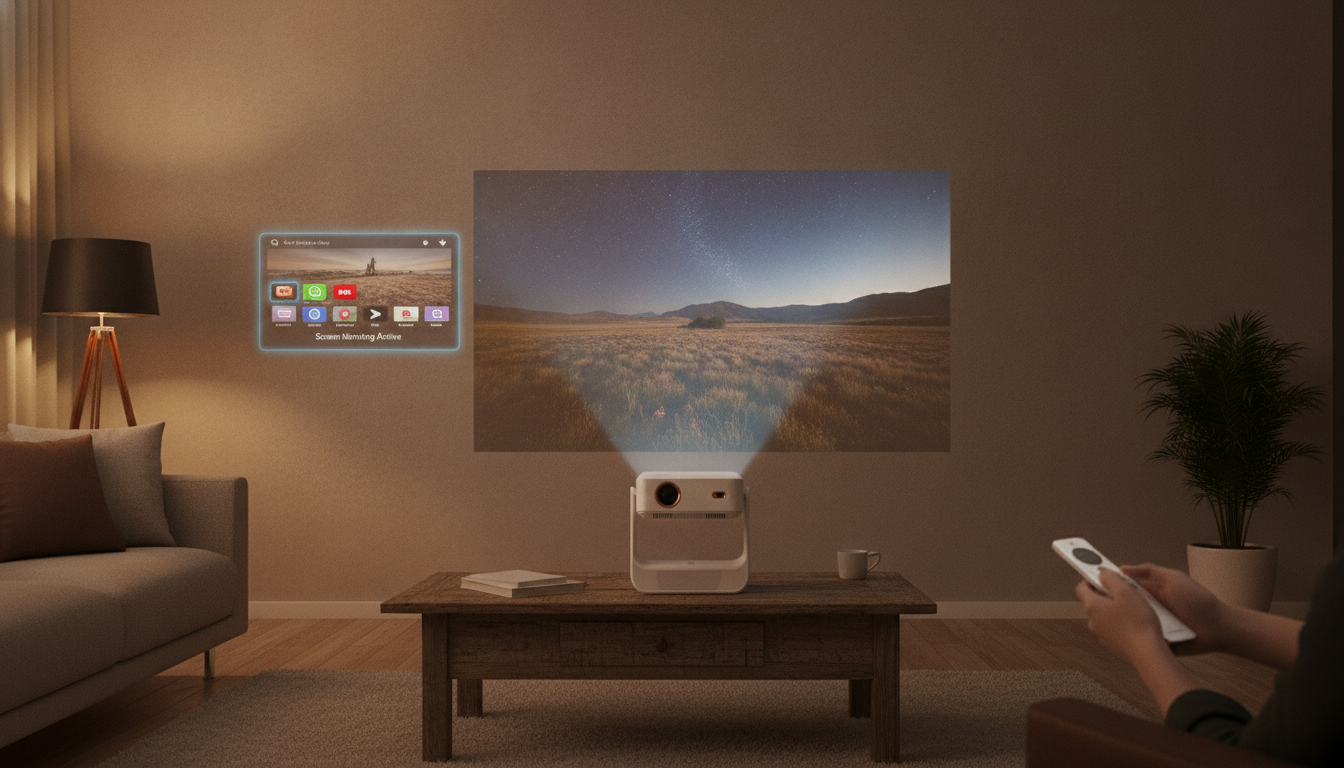
4K WiFi Projector with Dual Screen & Android OS: Big-Screen Streaming, Sharing, and Split-View Convenience
A dual-screen projector with Android OS blends two ideas that make everyday viewing easier: a built-in smart platform for streaming and a more flexible way to display content when you want to multitask. Instead of relying on an external streaming stick for everything, Android can handle many apps directly—while WiFi casting and split-view features (when supported by the model and apps) can help you share, compare, or collaborate without constantly swapping cables.
Below is a practical guide to what “dual screen” can mean in real use, how “4K” typically works on compact projectors, what to verify before setup, and which features matter most for movie nights, gaming, and presentations.
What “Dual Screen” Can Mean (and When It Helps)
“Dual screen” can refer to a split-view mode where two apps or two sources appear side by side. On an Android-based projector, this can look like a streaming app running next to a browser window, or a presentation next to a camera feed—assuming the projector’s software supports multi-window and the apps cooperate.
- Split-view scenarios: watch a video on one side while mirroring a phone or displaying a second source on the other (implementation varies by model and app support).
- Faster collaboration: show a slide deck and a live demo simultaneously for small meetings or home learning.
- Side-by-side entertainment: keep a stream running while browsing or casting another feed, where supported by the Android interface and installed apps.
- Best use cases: sports + stats, tutorials + notes, presentations + live camera feed, or comparing two videos.
| Use case | Typical sources | What to check before using |
|---|---|---|
| Presentation + live demo | Android app + HDMI laptop | Input switching or split-view mode availability; app permissions |
| Movie + phone mirror | Streaming app + WiFi casting | Casting protocol support; WiFi stability; DRM limitations on some apps |
| Lesson + reference material | YouTube app + browser/PDF viewer | Sufficient RAM/storage; split-screen feature in the OS |
| Gaming + chat/guide | Console via HDMI + Android app | Low-latency picture mode; audio routing (BT/aux); split-view support |
Android OS on a Projector: Convenience and Tradeoffs
Android OS on a projector can feel like having a “smart TV brain” inside your projector. For many households, that means fewer devices to plug in and fewer remotes to manage. The tradeoff is that app availability and performance depend on the Android build and the projector’s internal hardware.
- Built-in apps: reduce reliance on external sticks and cables for everyday streaming.
- App availability varies: some services may require updates or alternate installation methods depending on the storefront and Android version.
- Performance matters for multitasking: smoother navigation helps when switching apps, running split-screen, or playing higher-bitrate video.
- Permissions and updates: keeping apps current improves stability and casting/media compatibility.
For general casting guidance across Android TV-style systems, Google’s help resource can be useful: Android TV Help: Cast content to your TV.
4K Support, Real-World Clarity, and What to Expect
Many compact projectors advertise “4K,” but that often means 4K input support and decoding rather than a native 4K imaging panel. Real-world sharpness depends on the projector’s native resolution, lens quality, focus uniformity, and how aggressively you use digital correction tools.
If you plan to run modern devices through HDMI, a quick overview of HDMI capabilities and versions can help when picking cables and sources: HDMI Specification overview.
WiFi Casting and Connectivity: Getting a Stable Signal
For a high-level look at modern WiFi improvements that can reduce congestion and improve responsiveness, see: Wi‑Fi Alliance: Wi‑Fi CERTIFIED 6 (overview).
Sound Options for Home and Travel
Setup Tips for a Cleaner, Sharper Image
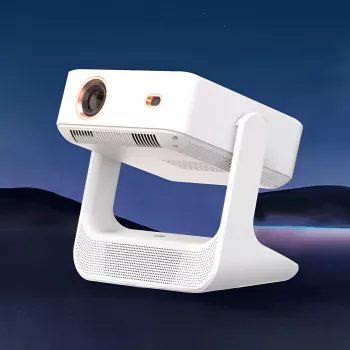
Product Spotlight: 4K WiFi Projector with Dual Screen & Android OS
If the goal is an all-in-one projector that’s ready for streaming, casting, and flexible viewing, the 4K WiFi Projector with Dual Screen & Android OS is designed around that convenience. With Android on board, it’s set up for app-based playback without requiring an extra device for every session, while dual-screen capabilities aim to support split-view and sharing workflows (based on the specific apps and settings available).
More In-Stock Picks (Useful Add-Ons)
- Portable Ultrasonic Cleaner for Jewelry, Glasses, Makeup Brushes – 450ml Capacity — a handy way to keep glasses and small accessories clean for clearer viewing and easier setup.
- Checklist: How to Use ChatGPT to Write an Essay | Digital Download Guide — useful for students presenting drafts or outlining ideas on a big screen during study sessions.
- The Checklist for Mental Balance with AI | Digital Download Self-Care Guide — a simple structured guide for wind-down routines after work or before movie nights.
FAQ
Can a dual-screen projector show two different sources at the same time?
Sometimes, but it depends on the projector’s split-view features and which apps/inputs are supported together. Common combinations include an Android app alongside HDMI, or a video app alongside phone mirroring—though certain pairings may be limited by the OS, the app, or content protections.
Will wireless casting work with Netflix and other streaming apps?
Wireless mirroring may be blocked or limited on some streaming services due to DRM. When that happens, using the built-in Android streaming app (if available) or switching to HDMI is typically the most dependable solution.
What’s the most reliable way to avoid lag for gaming or presentations?
An HDMI connection is usually the most reliable path for low latency and stable performance. For the best overall results, pair HDMI with wired audio when possible and avoid heavy keystone correction to keep the image crisp.


Leave a comment